Salesforce Data Cloud is built to ingest high-volume, near real-time data from external systems. While native connectors cover many common sources, real-world implementations often require custom, programmatic ingestion.
In this article, we’ll walk through a hands-on example of ingesting data programmatically into Salesforce Data Cloud using the Streaming Ingestion API.
The example is intentionally simple but realistic: ingesting device battery status events from an external system.
Note: This article focuses only on the Streaming Ingestion API. Bulk Ingestion API will be covered separately.
Use Case: Tracking Battery Status from Solar Panels
We want to track battery level updates sent periodically by solar panels installed across multiple locations, where each update represents a real-time reading that needs to be captured and stored as an event.
Why Streaming Ingestion API?
Because these battery updates arrive continuously in near real time and must be ingested event by event, rather than as large historical batches. Each event contains:
- Device ID
- Battery level
- Event timestamp
High-Level Architecture
External System
   ↓ (REST API call)
Streaming Ingestion API
   ↓
Data Stream
   ↓
Data Lake Object (Raw Events)
Each API call sends a single event into Data Cloud, which is then processed asynchronously.
Step 1: Create an Ingestion API Connector
In Salesforce Data Cloud:
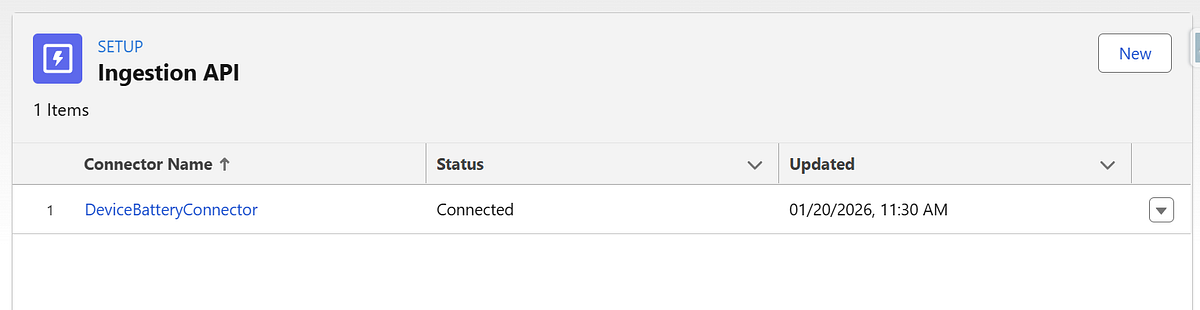
- Navigate to Data Cloud Set Up → Connectors
- Click New
- Select Ingestion API
- Name the connector (for example: DeviceBatteryConnector)
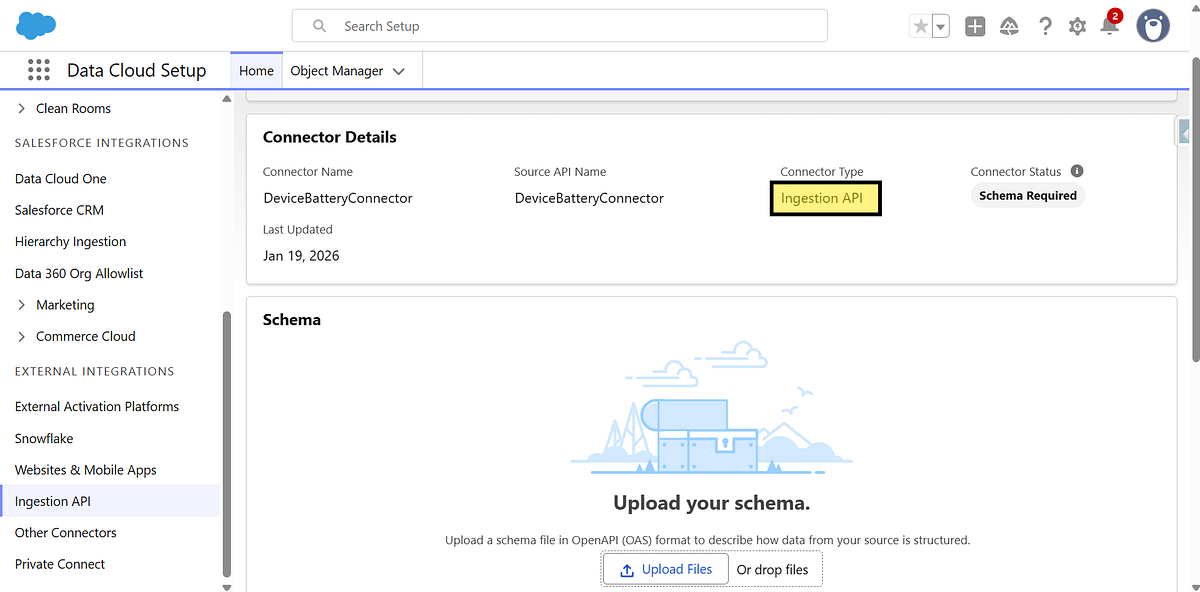
Why this matters:
Each external system should have its own connector. This keeps schemas, ownership, and debugging clean.
Step 2: Define the Schema (OpenAPI / YAML)
Data Cloud requires a schema to understand the structure of incoming data. This schema becomes the contract between the external system and Data Cloud.
Example schema for battery status events:
openapi: 3.0.1
info:
  title: Battery Status Streaming Schema
  version: 1.0.0
components:
  schemas:
    BatteryStatus:
      type: object
      properties:
        eventId:
          type: string
        deviceId:
          type: string
        batteryLevel:
          type: number
        eventTime:
          type: string
          format: date-time
      required:
        - eventId
        - deviceId
        - batteryLevel
        - eventTime
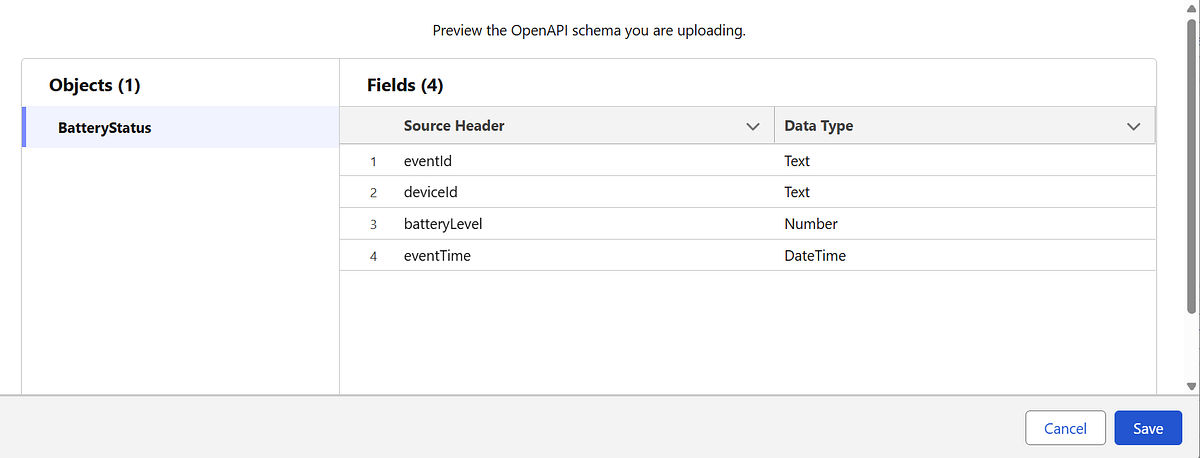
Important considerations:
eventTimeshould represent when the event occurred, not when it was ingested- Streaming ingestion is append-only, so schema design is critical
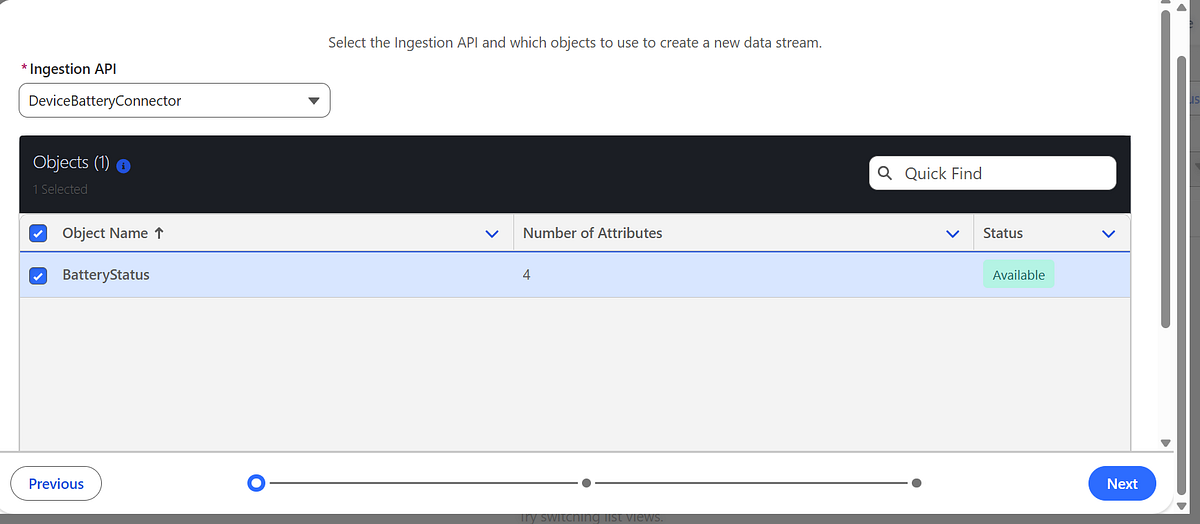
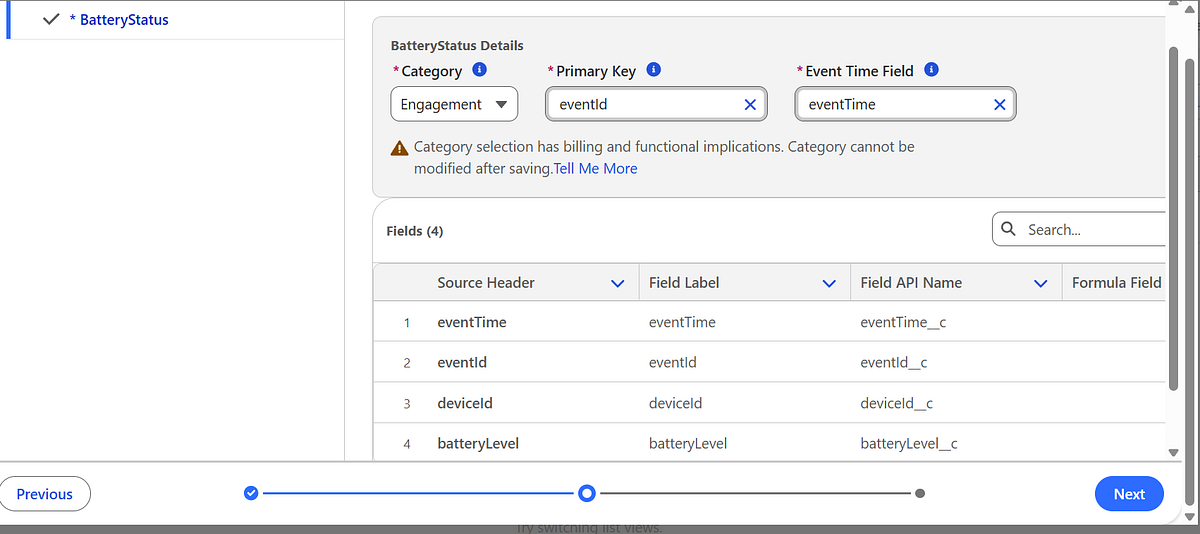
Step 3: Create a Data Stream
Next, create a Data Stream to bind the connector and schema.
- Go to Data Cloud → Data Streams
- Create a new Data Stream
- Select the Ingestion API connector
- Choose the schema object (
BatteryStatus) - Select a category (for example: Engagement)
⚠️ Category selection is irreversible, so choose carefully.
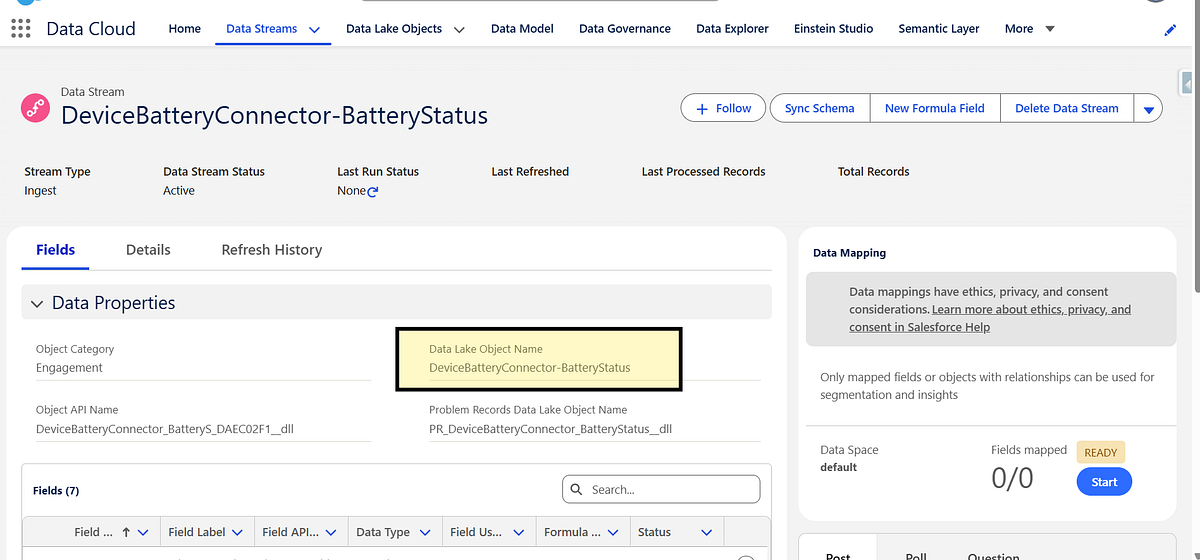
Once deployed, Data Cloud automatically creates a Data Lake Object (DLO) to store the raw events.
Step 4: Set Up Authentication (Connected App)
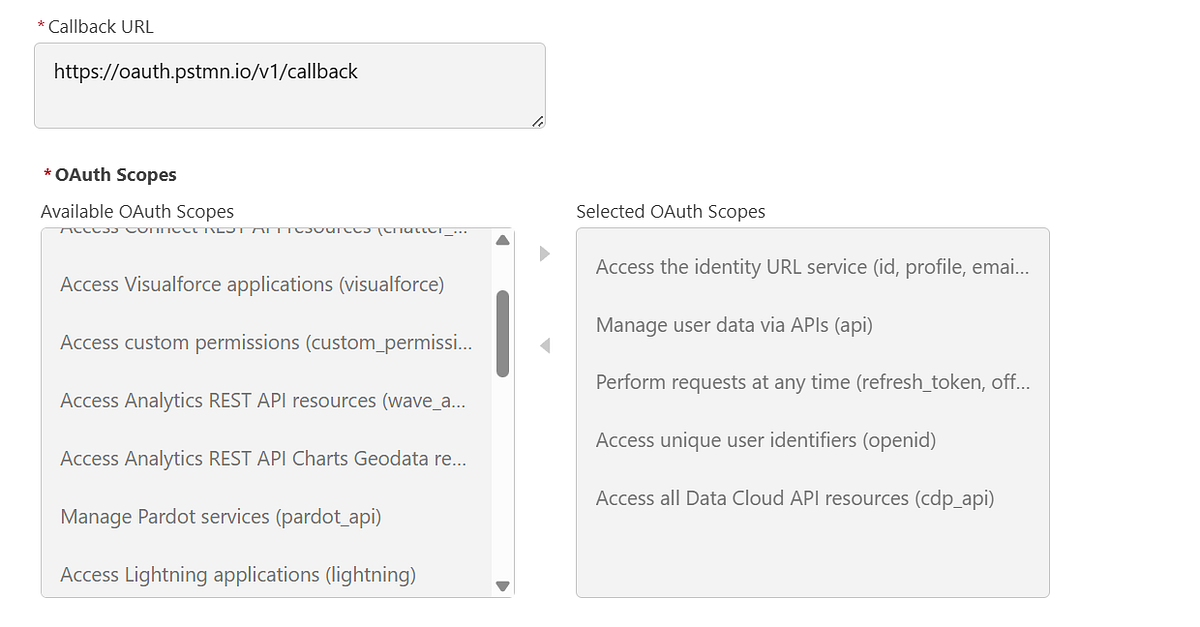
The Streaming Ingestion API uses OAuth authentication.
Steps at a high level:
- Create a Connected App in Salesforce
- Enable OAuth
- Assign required Data Cloud scopes
- Generate an access token (often referred to as an A360 token)
This token will be passed in the Authorization header for API calls.
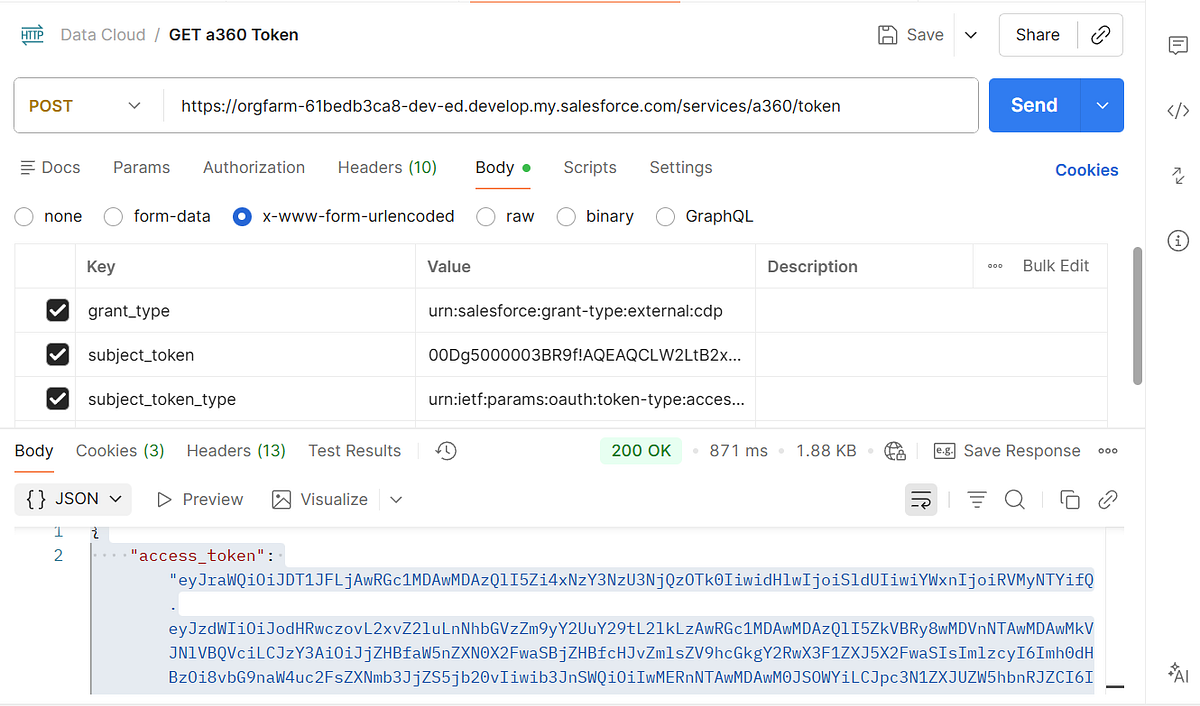
Step 5: Send Data Using the Streaming Ingestion API
- Generate Access Token
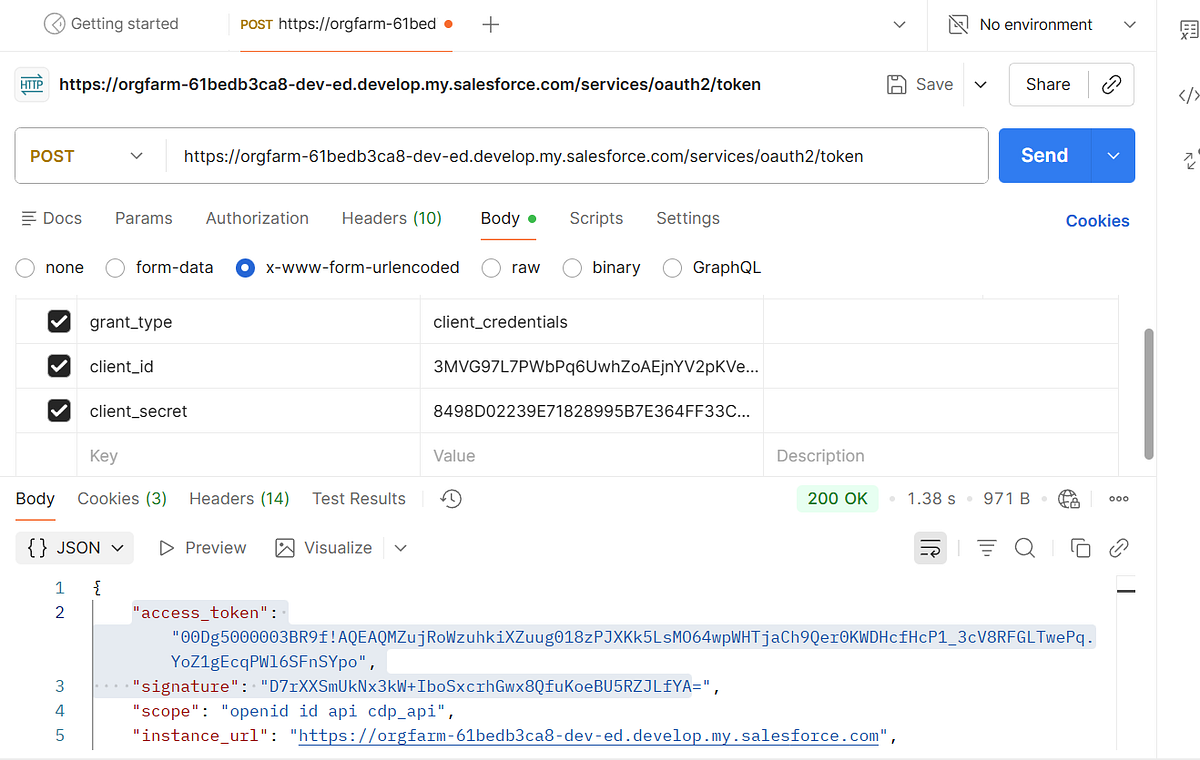
2. Exchange access token from previous request to get Data cloud token.
Endpoint Structure
POST services/a360/tokenPOST services/a360/token
Example HTTP Request
POST https://orgfarm-61bedb3ca8-dev-ed.develop.my.salesforce.com/services/a360/token
grant_type: urn:salesforce:grant-type:external:cdp
subject_token: <ACCESS_TOKEN>
subject_token_type: urn:ietf:params:oauth:token-type:access_token
3 Insert Record
One of the biggest challenges I faced was finding the correct ingestion endpoint. Most Salesforce documentation and tutorials reference generic endpoints like api/v1/ingest/connectors/{connectorName}/{objectName}, but none of those worked for my org.
Eventually, I discovered that Salesforce provides a tenant-specific ingestion endpoint directly in the Streaming Ingestion Connector configuration page, along with a YAML file listing all object-specific endpoints. This tenant endpoint is the only reliable source of truth for your Data Cloud ingestion URLs.
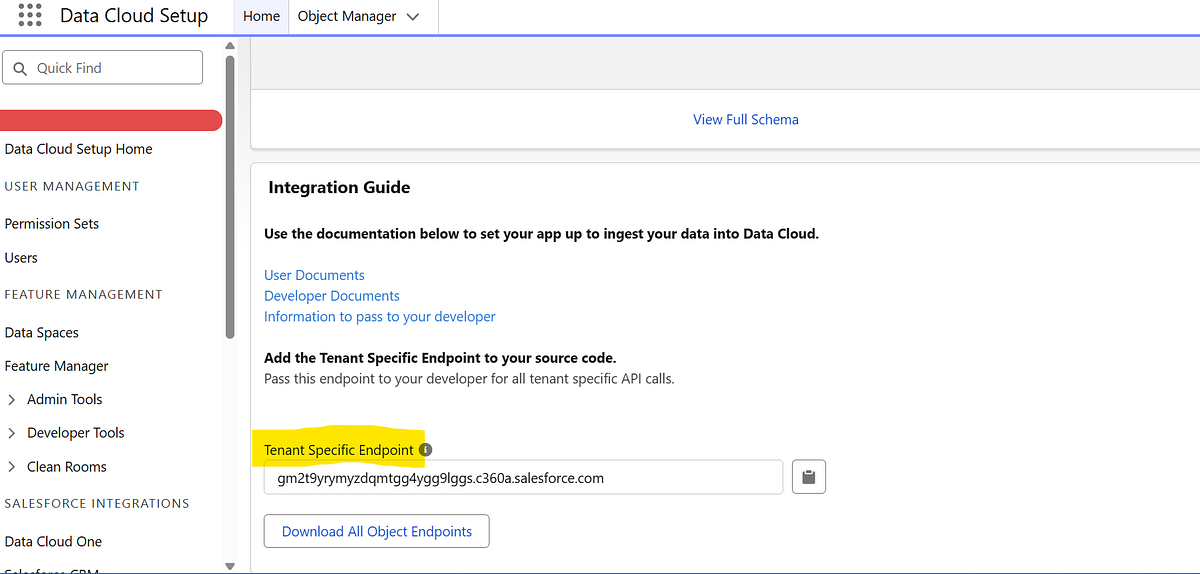
Endpoint Structure
POST <TENANT SPECIFIC ENDPOINT>/api/v1/ingestion/connectors/{connectorName}/objects/{objectName}
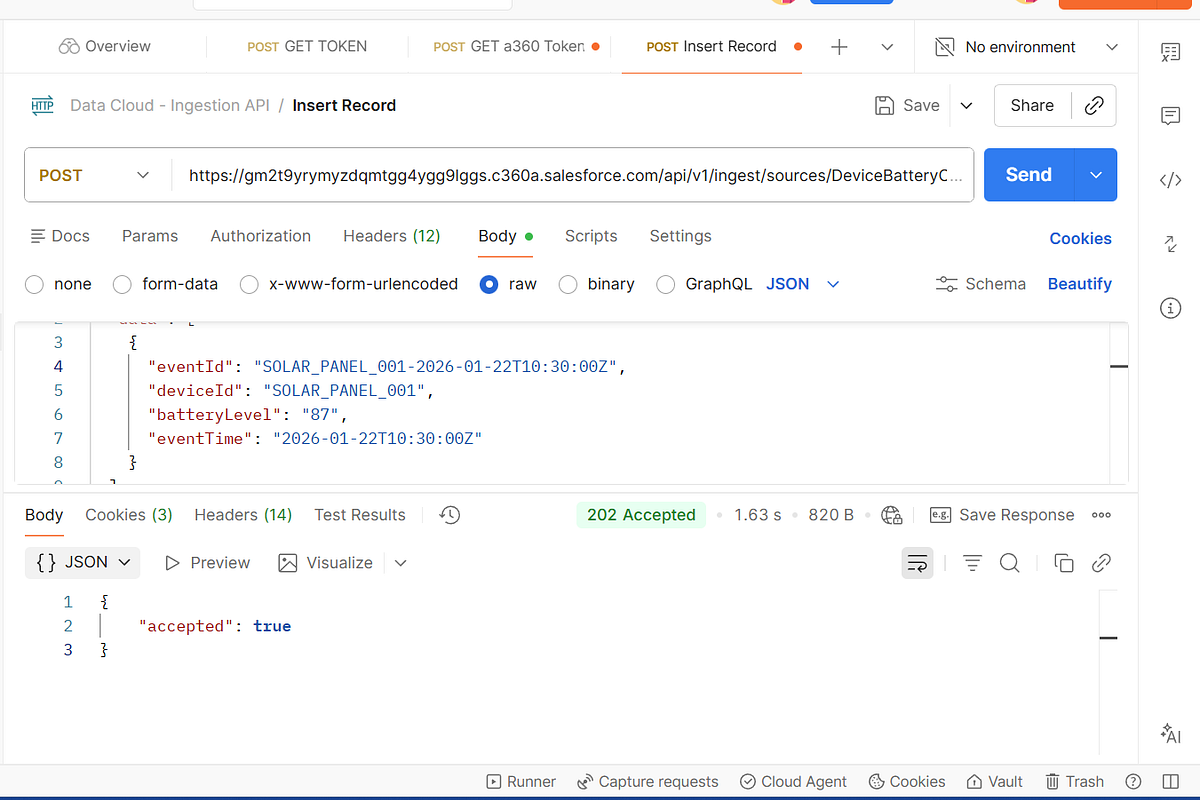
Example HTTP Request
POST https://gm2t9yrymyzdqmtgg4ygg9lggs.c360a.salesforce.com/api/v1/ingest/sources/DeviceBatteryConnector/BatteryStatus
Authorization: Bearer <ACCESS_TOKEN>
Content-Type: application/json
Example JSON Payload
{
  "data": [
    {
      "eventId": "SOLAR_PANEL_001-2026-01-22T10:30:00Z",
      "deviceId": "SOLAR_PANEL_001",
      "batteryLevel": 87,
      "eventTime": "2026-01-22T10:30:00Z"
    }
  ]
}
Each request represents one event being ingested into Data Cloud.
Streaming ingestion is near real-time, with data typically available for downstream processing within ~15 minutes.
Step 6: (Optional) Validate Data Before Ingestion
During development, it’s highly recommended to use the validation endpoint to ensure:
- Payload matches the schema
- Required fields are present
- Data types are correct
This prevents runtime ingestion failures and speeds up debugging.
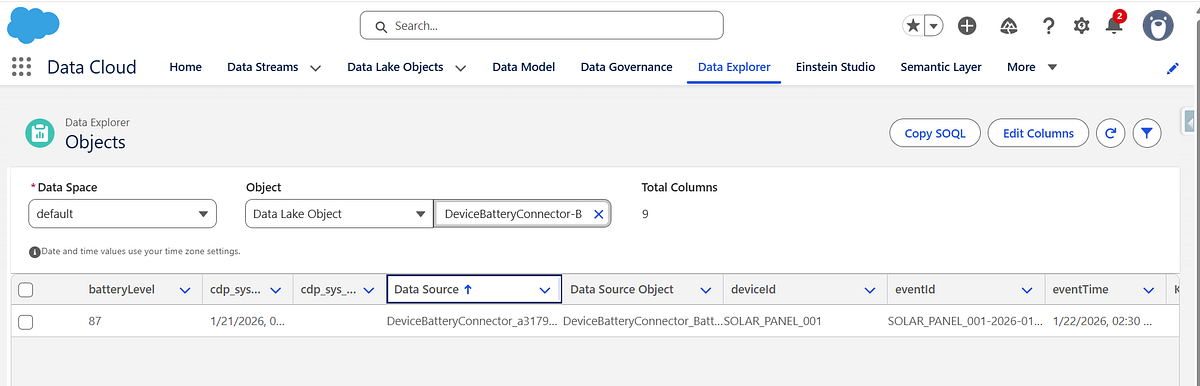
Step 7: Verify Ingested Data in Data Cloud
After ingestion:
- Navigate to Data Cloud → Data Explorer
- Locate the generated Data Lake Object
- Verify records and timestamps
At this stage, the data is:
- Raw
- Append-only
- Not yet harmonized or unified
Key Takeaways for Developers
- Streaming Ingestion API is event-driven, not record-driven
- Schemas are strict contracts — design them carefully
- Each API call ingests a single event
- Category choice impacts downstream usage and cannot be changed
- Streaming ingestion is ideal for telemetry, activity, and near real-time data
 Jyoti Agarwal
Leave a comment